
How to Find the Total Length of a YouTube Channel
TL;DR
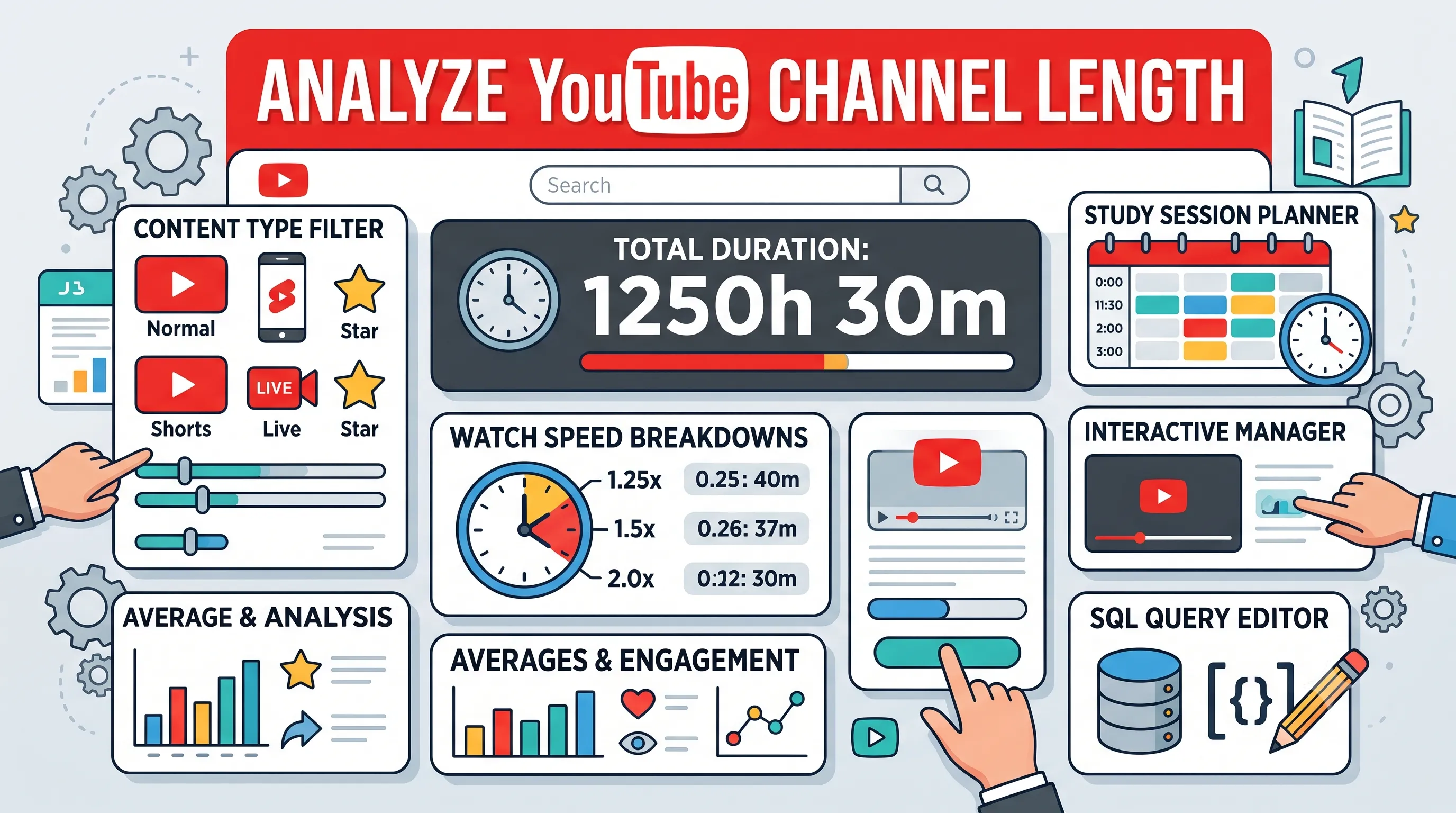
You can completely analyze the total video duration of any YouTube channel using our free calculator. It offers custom filters for Shorts or Live streams, specific range selections, watch-speed calculations, an interactive study manager, and even a built-in SQL query editor.
Go to Channel Length CalculatorWhen you discover a great YouTube channel, finding out exactly how much content they have published is the first step to planning your watch time. YouTube tells you the total number of videos on the About page, but knowing a channel has 400 videos does not tell you if they are short clips or massive two-hour lectures.
To solve this, we built a comprehensive YouTube Channel Length tool. It does much more than just spit out a total time. It is a complete dashboard designed to help you analyze, sort, and study from creators. Here is a complete end-to-end guide on every feature the tool offers and how you can use them.
1. Multiple Ways to Input a Channel
You do not need to hunt down a specific channel ID to use the tool. We built the input field to automatically recognize and parse multiple formats. You can paste:
- A standard channel handle (like
@MrBeast). - A full channel URL.
- A raw Channel ID.
- Any regular video link. If you paste a video link, the tool automatically figures out which channel uploaded it and scans that channel.
2. Content Type Filtering
A modern YouTube channel is a messy mix of different formats. If you mix 10-second Shorts with 3-hour Live streams, your total duration number becomes useless. Before hitting calculate, you can use the Content Type dropdown to isolate exactly what you want to measure. The options include:
- All Uploads: Combines Videos, Shorts, and Live streams.
- Videos Only: Strictly counts regular long-form videos.
- Shorts Only: Calculates the total time of their vertical short-form content.
- Live Streams Only: Measures only the backlog of past live broadcasts.
- Popular Content: You can choose Popular Videos, Popular Shorts, or Popular Live Streams to only analyze the content that actually went viral.
3. Custom From / To Ranges
You might not want to calculate an entire channel. Maybe a gaming creator has 2,000 videos, but you only want to see the length of their specific "Minecraft" era which spans from their 50th newest video to their 150th. By entering numbers into the From and To fields, the tool will ignore everything else and only calculate the duration for that specific slice of uploads.
Note: The tool safely handles massive channels by calculating up to the most recent 5,000 public videos per media type to ensure fast performance.
4. The Results Dashboard and Statistics
Once you hit calculate, the tool generates a dashboard filled with detailed metrics about the channel's content.
Playback Speed Breakdowns
Almost nobody watches tutorials at normal speed. The dashboard instantly displays the total time required if you watch the videos at 1.25x, 1.5x, 1.75x, and 2.0x speeds. A daunting 50-hour channel backlog suddenly looks very manageable when you realize it only takes 25 hours at double speed.
Averages and Engagement
The dashboard also displays the Average Video Duration, which helps you understand the creator's upload style. Additionally, it calculates the average views, likes, and comments across the videos you scanned, giving you a quick snapshot of their audience engagement.
5. The Study Session Planner
If you are tackling an educational channel, you need a schedule. We built a Study Session Planner directly into the results page. It has two modes:
- Daily Study Time: Tell the tool you have 1 hour and 30 minutes to study each day at 1.5x speed. It will automatically calculate exactly how many days it will take you to finish the entire channel.
- Daily Videos: Tell the tool you want to watch exactly 3 videos per day, and it will give you your target completion date.
6. The Interactive Study Manager & Video Player
If you scan a full channel (without using the From/To ranges), you unlock the Study Manager. This turns the page into a complete learning platform.
- Embedded Player: Watch the videos right on the page without getting distracted by YouTube's recommended sidebar.
- Focus Mode: Toggle a distraction-free layout (Cinema Mode) for deep study sessions.
- Progress Tracking: Click "Mark as Completed" on videos you finish. The tool tracks your overall percentage and updates the "Remaining Time" automatically.
- Auto-Play: Turn on auto-play to seamlessly jump to the next video when one finishes.
7. Advanced Sorting and Searching
Below the player, you get a full, interactive list of every video scanned. You can search for specific topics using the search bar, or use the dropdown to reorganize the entire channel feed. The sort options include:
- Original Order
- Newest First & Oldest First
- Most Views & Least Views
- Most Likes & Least Likes
- Most Comments & Least Comments
- Longest First & Shortest First
8. The Built-In SQL Query Editor
For data nerds and power users, we added a live SQL Query Editor directly in the browser. The tool loads all the video data into an in-memory database table called videos. You can write your own custom SQL queries (like SELECT title, viewCount FROM videos WHERE durationSeconds > 600 ORDER BY viewCount DESC LIMIT 10) and hit Run to instantly see the results. It is the ultimate way to analyze a creator's catalog.
9. Local Watch History (Resume Channels)
If you regularly study from specific channels, you do not want to constantly copy and paste URLs. The tool automatically saves your searches and your completion progress in a "Resume Your Channels" history shelf on the main page. This data is saved locally on your device, ensuring complete privacy. You can pick up exactly where you left off tomorrow, or clear the history entirely with one click.
We built this tool to be the only dashboard you ever need for analyzing and watching YouTube channels. Grab a handle, paste it into the Channel Length Calculator, and start exploring.