
How to Watch a YouTube Playlist in Reverse Order (Easy Guide)
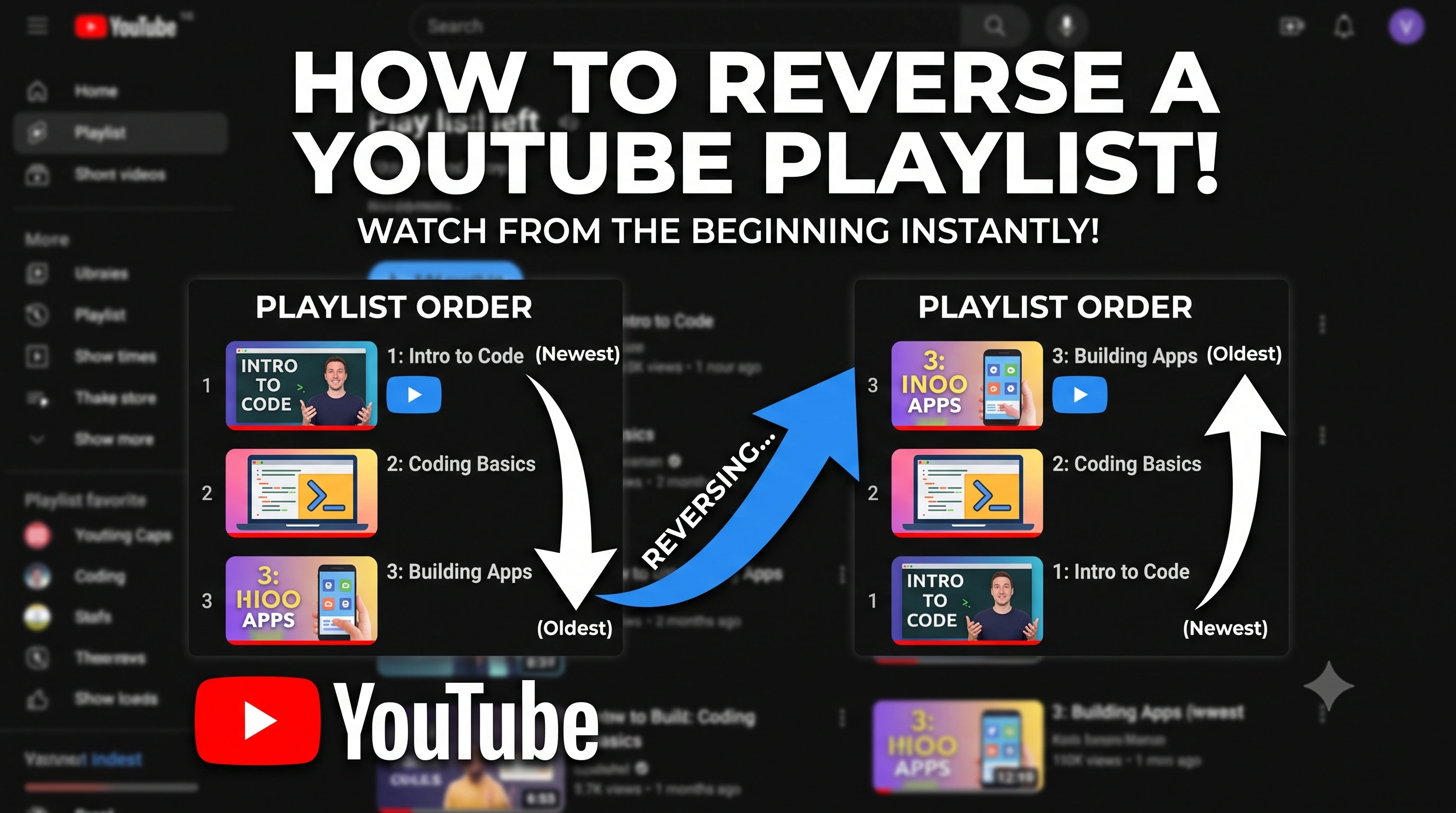
TL;DR
YouTube does not have a native "Reverse" button. Instead of manually clicking through videos backwards, you can paste your playlist link into our free tool to instantly flip the order and watch from oldest to newest.
Go to Playlist Reverser ToolIf you have ever tried to watch a YouTube playlist in reverse order, you already know the frustration. You look everywhere for a simple "Reverse" or "Sort" button, but it just does not exist on the main YouTube player.
This missing feature becomes a massive headache in a few very common situations. Think about when you discover a new vlogger and want to watch their daily uploads from the very beginning. Or when you find a brilliant 50-part programming course, but the creator uploaded it so the newest (final) video sits at the top of the playlist. Because YouTube natively plays lists from top to bottom, it will try to make you watch the finale before the introduction!
You are left with only one terrible option: scrolling all the way to the bottom of the list, clicking the oldest video, waiting for it to finish, and then manually clicking the video above it. Doing this for dozens or hundreds of videos completely ruins the viewing experience.
To solve this exact problem, we built a free, dedicated YouTube Playlist Reverser. It takes any playlist you throw at it and automatically flips it upside down so you can just sit back and watch.
How to Reverse Your YouTube Playlist (Step-by-Step)
We wanted to make this as simple as possible. You do not need to install any heavy browser extensions, and you certainly do not need to create an account. It runs entirely in your web browser, meaning it works just as well on your iPhone or Android as it does on your laptop.
Here is exactly how to do it:
- Copy the Playlist Link: Go to YouTube and open the playlist you want to watch. If you are on a computer, simply copy the full web address from the top bar. If you are on a mobile phone, tap the Share button (usually an arrow icon) and select Copy Link.
- Open the Reverser Tool: Head over to our YouTube Playlist Reverser.
- Paste and Load: Paste your copied YouTube link into the main search box on the page and click the load button.
- Start Watching: That is literally it. The tool will instantly fetch the playlist, flip it upside down, and begin playing the very last video first. When that video ends, it automatically plays the one above it.
Why Use Our Tool Instead of Browser Extensions?
If you search around the web for ways to reverse a YouTube playlist, you will probably find a few Chrome extensions. While those work for some people, they come with a lot of downsides.
First, browser extensions only work on desktop computers. If you like to watch courses or music videos on your iPad or phone, an extension will not help you. Second, extensions often break whenever YouTube updates its website code. Finally, many people simply do not like giving third-party extensions access to read their browsing data.
By using a web-based tool, you bypass all of those issues entirely.
Built-in Features for Power Watchers
When you load your playlist into the reverser, you are not just getting a basic list of links. We built a custom video player dashboard packed with features specifically designed for people who watch long playlists or courses.
- Handles Huge Playlists: Whether the playlist has 10 videos or a massive 5,000 videos, the tool will grab all of them and reverse the order in a matter of seconds.
- Resume Where You Left Off: If you close your browser and come back tomorrow, you don't have to go find the link again. The tool saves your recent playlists to your browser history so you can jump right back in.
- Adjust Playback Speed & Sorting: Some creators talk a bit too slowly. You can speed up the video to 1.5x or 2x speed right from our dashboard. And if you change your mind about watching in reverse, you can sort the queue back to the original order at any time.
- See Exactly How Much Time is Left: The dashboard calculates your remaining watch time and updates automatically as you progress through the videos.
- Cinema Mode & Progress Tracking: For a distraction-free environment, click Cinema Mode to dim the screen. The dashboard will track what you have watched and show a progress bar so you know how far along you are.
- Everything in One Place: As a video plays, you can see its views, likes, and the full description right below the player. If you want to share a specific video with a friend, there is a one-click button to copy its direct link.
- Mobile-Friendly Design: Watching on your phone? We added a quick "Paste" button so you do not have to awkwardly press-and-hold the screen, plus a collapsible details section to keep the player clean.
- Search Your Queue: If you are looking for a specific topic inside a 200-video playlist, there is a built-in search bar that lets you filter your queue instantly.
Stop wasting time manually clicking through videos backwards. Just grab your link, paste it into the YouTube Playlist Reverser, and let the tool do the heavy lifting for you.